Printer Test Page PDF
Download any of the four test pages as a print-ready PDF, in Letter or A4. Each file is one vector page at the exact paper size, with colors stored as CMYK ink values. Open it in any PDF viewer, print at Actual size, and the 100 mm ruler on the sheet should measure 100 mm.
| Test page | Letter (8.5 × 11 in) | A4 (210 × 297 mm) |
|---|---|---|
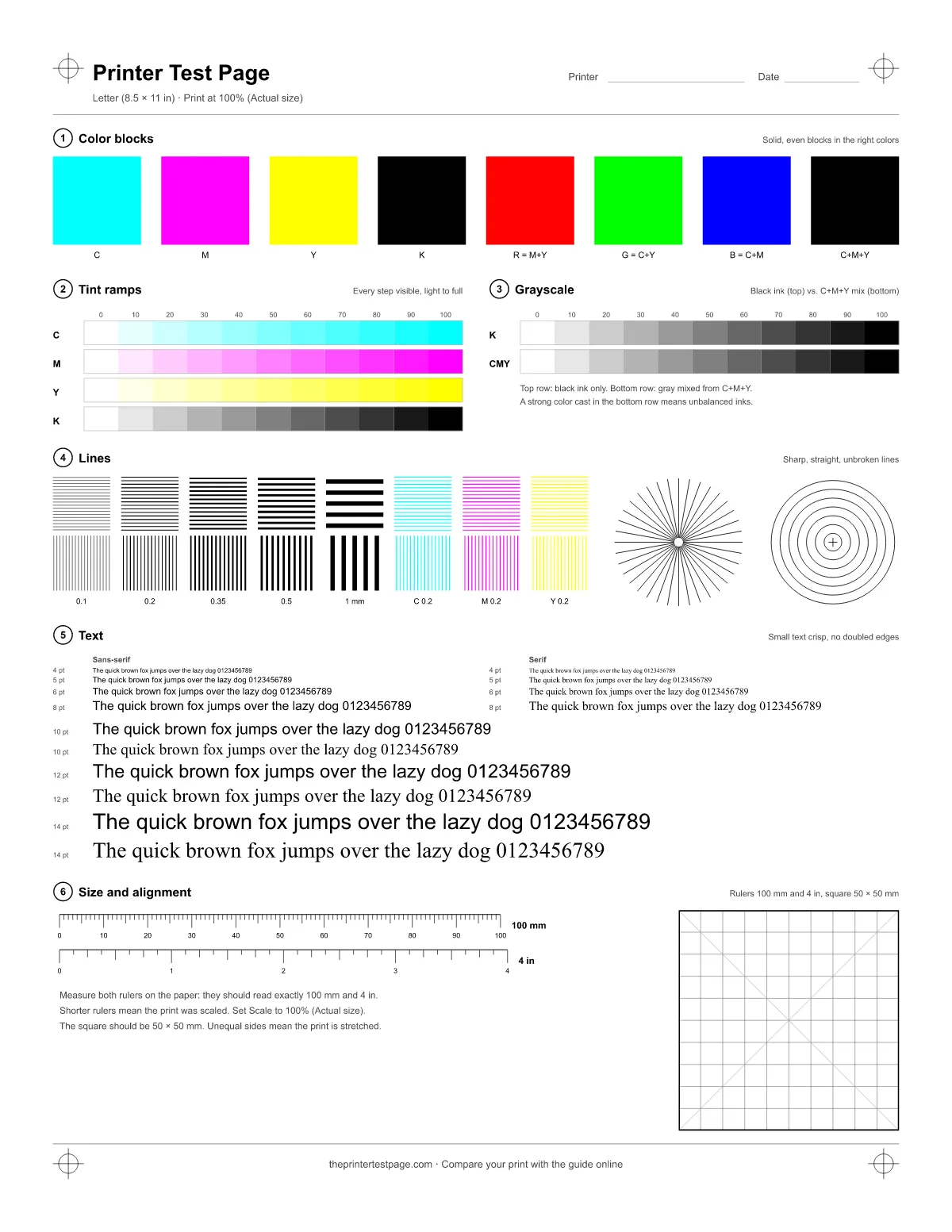 Universal test pageColor blocks, tint ramps, grayscale, fine lines, small text and rulers on one page. Universal test pageColor blocks, tint ramps, grayscale, fine lines, small text and rulers on one page. | Download PDF – Letter14 KB, 1 page | Download PDF – A414 KB, 1 page |
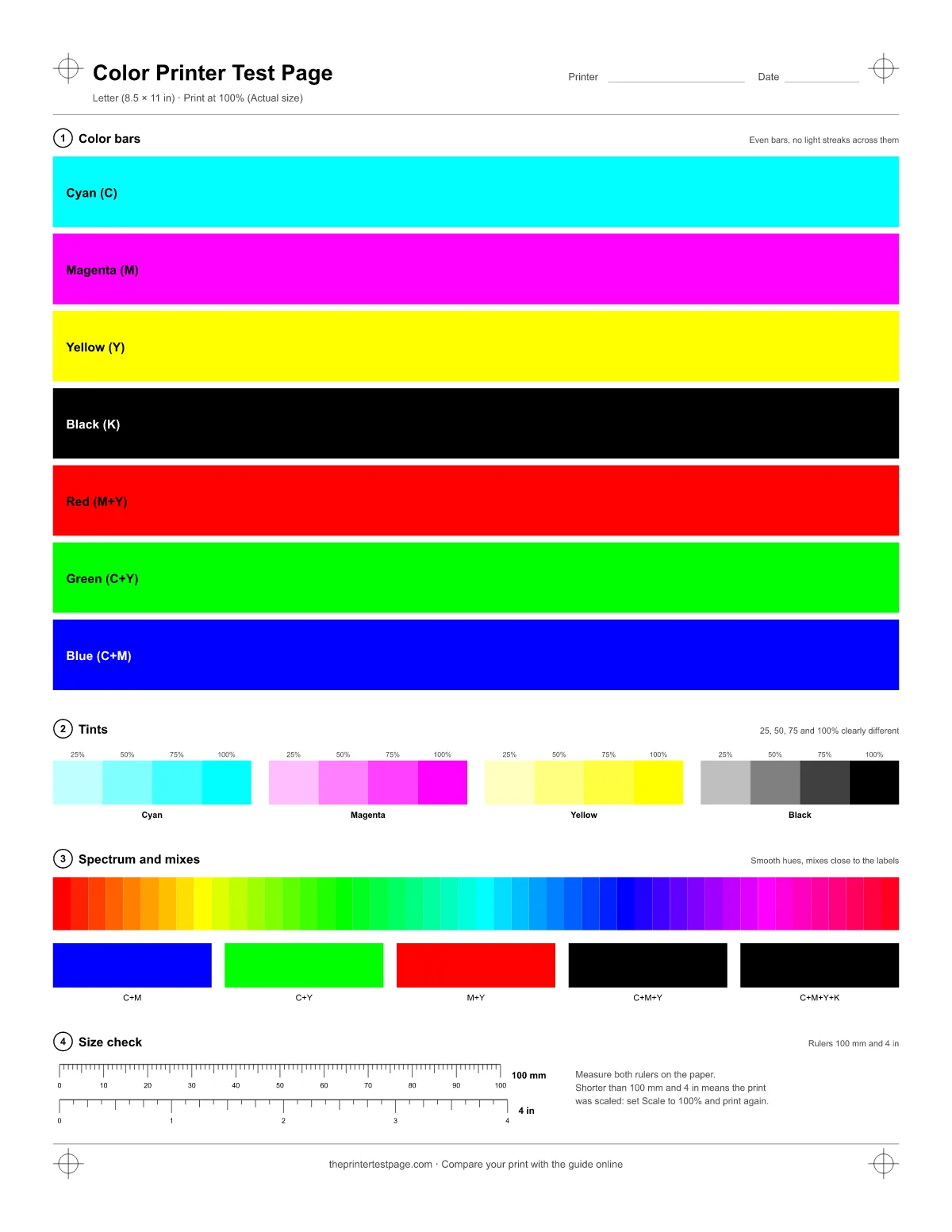 Color test pageFull-width CMYK and RGB bars, tints and a 48-step spectrum. Uses a lot of ink. Color test pageFull-width CMYK and RGB bars, tints and a 48-step spectrum. Uses a lot of ink. | Download PDF – Letter7 KB, 1 page | Download PDF – A47 KB, 1 page |
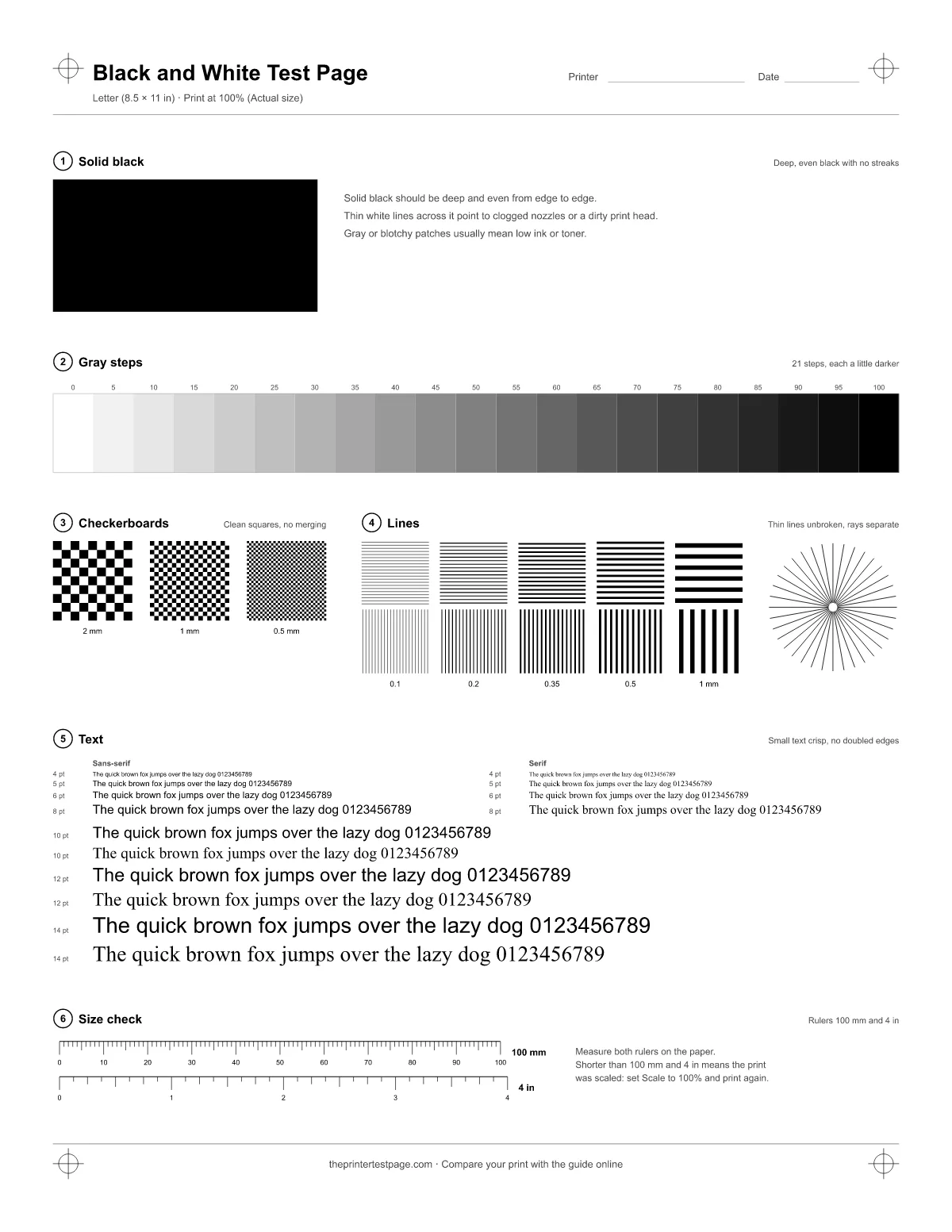 Black and white test pageSolid black, 21 gray steps, checkerboards, fine lines and text. Black ink only. Black and white test pageSolid black, 21 gray steps, checkerboards, fine lines and text. Black ink only. | Download PDF – Letter15 KB, 1 page | Download PDF – A415 KB, 1 page |
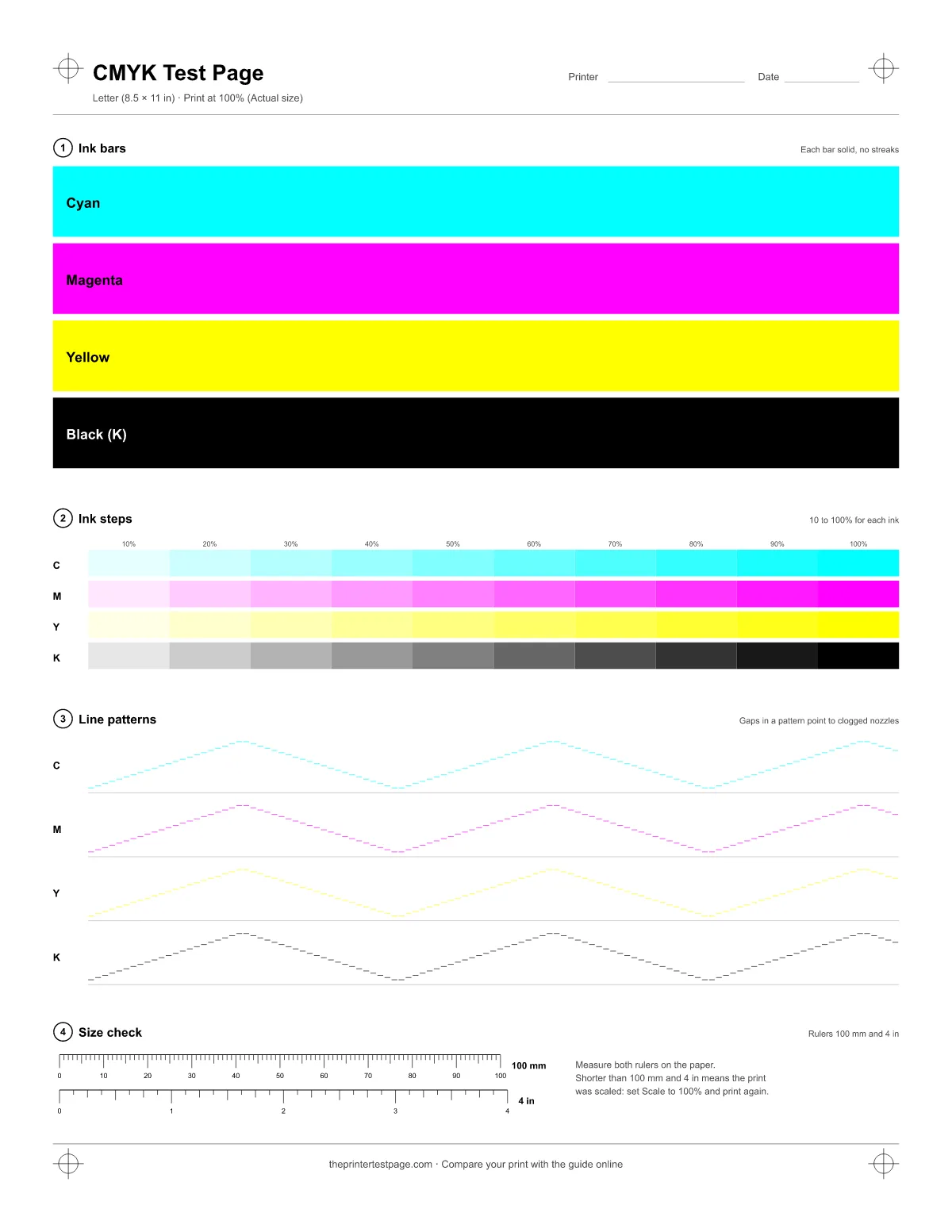 CMYK test pageEach ink on its own: cyan, magenta, yellow and black bars, steps and line patterns. CMYK test pageEach ink on its own: cyan, magenta, yellow and black bars, steps and line patterns. | Download PDF – Letter13 KB, 1 page | Download PDF – A413 KB, 1 page |
Free to download, print and share. Each test page also has its own guide to reading the results: follow the links in the first column.
How to print a PDF at 100% scale
PDF viewers often shrink pages to fit the printable area of your printer. For a test page that hides scaling problems, so turn it off:
- Adobe Acrobat Reader: in the Print dialog, under Page Sizing & Handling, choose Size, then Actual size.
- Chrome or Edge: open the PDF in the browser, press Ctrl + P, and under More settings set Scale to Actual size.
- Preview on a Mac: choose File > Print and set Scaling to 100%.
- iPhone, iPad or Android: open the file, tap Share, then Print, and pick the paper size you loaded.
After printing, measure the 100 mm ruler. If it is shorter, the viewer still scaled the page.
Sources: Adobe Help: Adjust page size for printing PDFs in Acrobat (opens in a new tab); Microsoft Support: Print in Microsoft Edge (opens in a new tab); Apple Support: Print settings on Mac (opens in a new tab); Apple Support: Print from your iPhone or iPad with AirPrint (opens in a new tab)
Why a PDF prints more accurately than a web page
Printing from the browser works well on this site, but a PDF removes a few variables:
- Fixed page size. The file is exactly 612 × 792 pt (Letter) or 595 × 842 pt (A4). Browsers sometimes ignore the paper size a web page asks for; a PDF viewer doesn't.
- No browser extras. No headers, footers, page URLs or print margins added by the browser.
- Ink values, not screen colors. Color areas are stored as CMYK: 100% cyan is cyan ink only. Printers and print shops that read CMYK use those values as they are. Most home inkjet drivers still convert colors their own way, so the difference there is small.
- Same file every time. Print it today and again in a month, on another computer, or send it to someone, and you are comparing the same page.
Prefer the browser? The printer test page prints in one click and adds a guide to reading your results.
Test pages to print from the browser
- Universal test pageColor blocks, tint ramps, grayscale, fine lines, small text and rulers on one page.
- Color test pageFull-width CMYK and RGB bars, tints and a 48-step spectrum. Uses a lot of ink.
- Black and white test pageSolid black, 21 gray steps, checkerboards, fine lines and text. Black ink only.
- CMYK test pageEach ink on its own: cyan, magenta, yellow and black bars, steps and line patterns.
- All test pages as PDFEight vector files, Letter and A4, with true CMYK colors. Print them from any PDF viewer.