Skip to content
Printer Test Page: home

Color Printer Test Page

Print this color test page to check every ink at full strength: seven full-width bars, tints and a 48-step spectrum. Use it when colors look wrong or a cartridge seems to be failing.

Paper size:
Tip: print at 100% scale

Set Scale to 100% (Actual size) and turn off "Fit to page". The ruler on the sheet should measure exactly 100 mm. If the print dialog shows a different paper size, pick Letter or A4 there too, or print the PDF.

This sheet uses a lot of ink: about 45% of the page is solid color. For a routine check, print the universal test page.

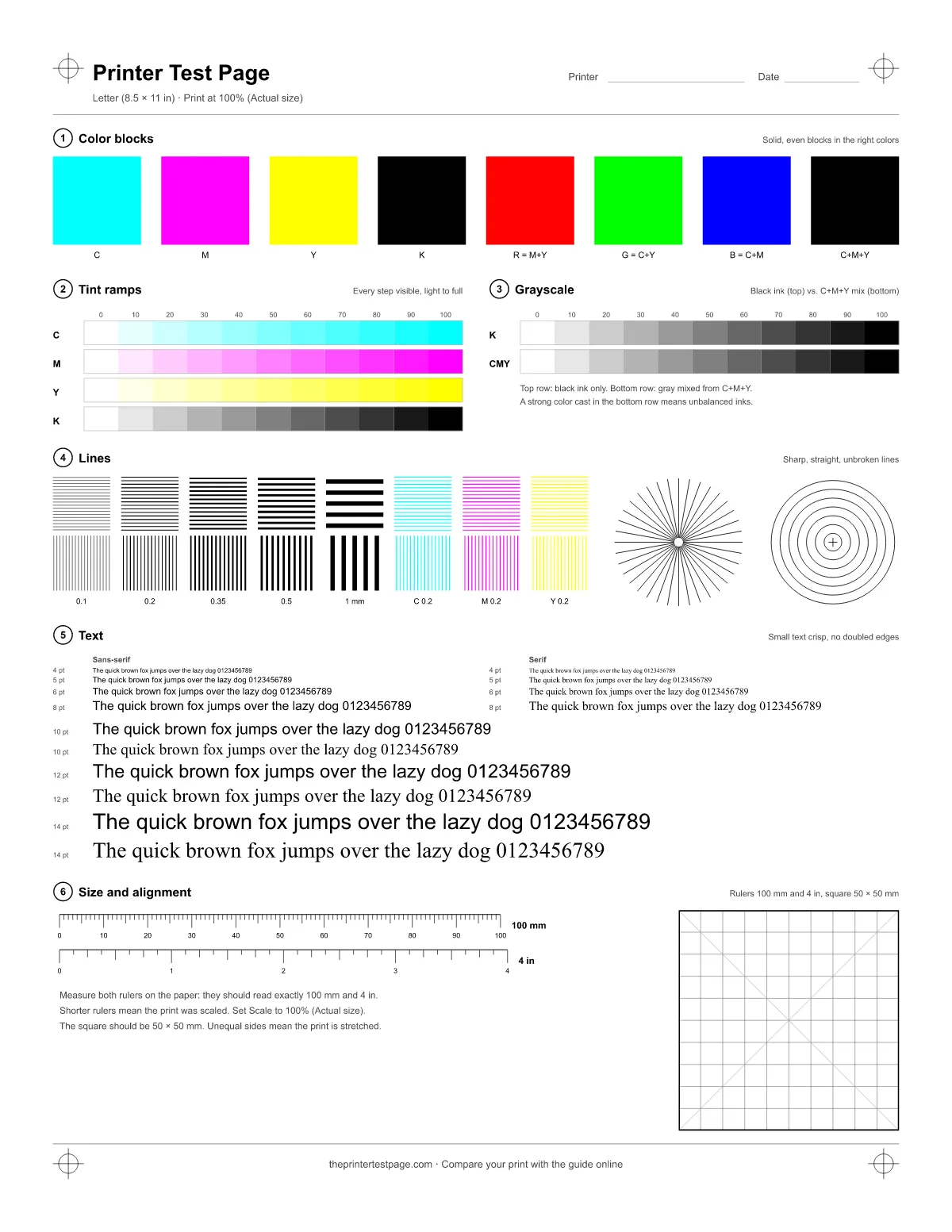
Preview of the Letter sheet. It prints at full size.

How did it print?

Hold your printout next to the screen and pick what you see. You get the likely cause, the page to print next and what to do.

Pictures are illustrations of each problem, not photos of real prints.

What the color test checks

A color test page (also known as a colour test page) prints large areas of each ink so that weak cartridges, clogged nozzles and color casts are easy to see. This one has four numbered zones, and the numbers on the paper match the list below.

  1. Zone 1: Color bars. Seven bars, 16 mm tall, across the full printable width: cyan, magenta, yellow and black, then red, green and blue overprints. Because each bar runs the width of the page, a clogged nozzle leaves a thin light line along the bar that is easy to spot.
  2. Zone 2: Tints. 25, 50, 75 and 100% of each ink. Every step should look clearly lighter than the one after it. Two steps that look alike mean the printer can no longer hold that range with the current ink, paper and settings.
  3. Zone 3: Spectrum and mixes. A spectrum of 48 hues, each built from two inks, and five overprints: C+M, C+Y, M+Y, C+M+Y and all four inks. A gap or a sudden jump in the spectrum points to one ink dropping out.
  4. Zone 4: Size check. A 100 mm ruler and a 4 inch ruler. If they measure short on paper, the print was scaled and colors in a smaller print can look different too.
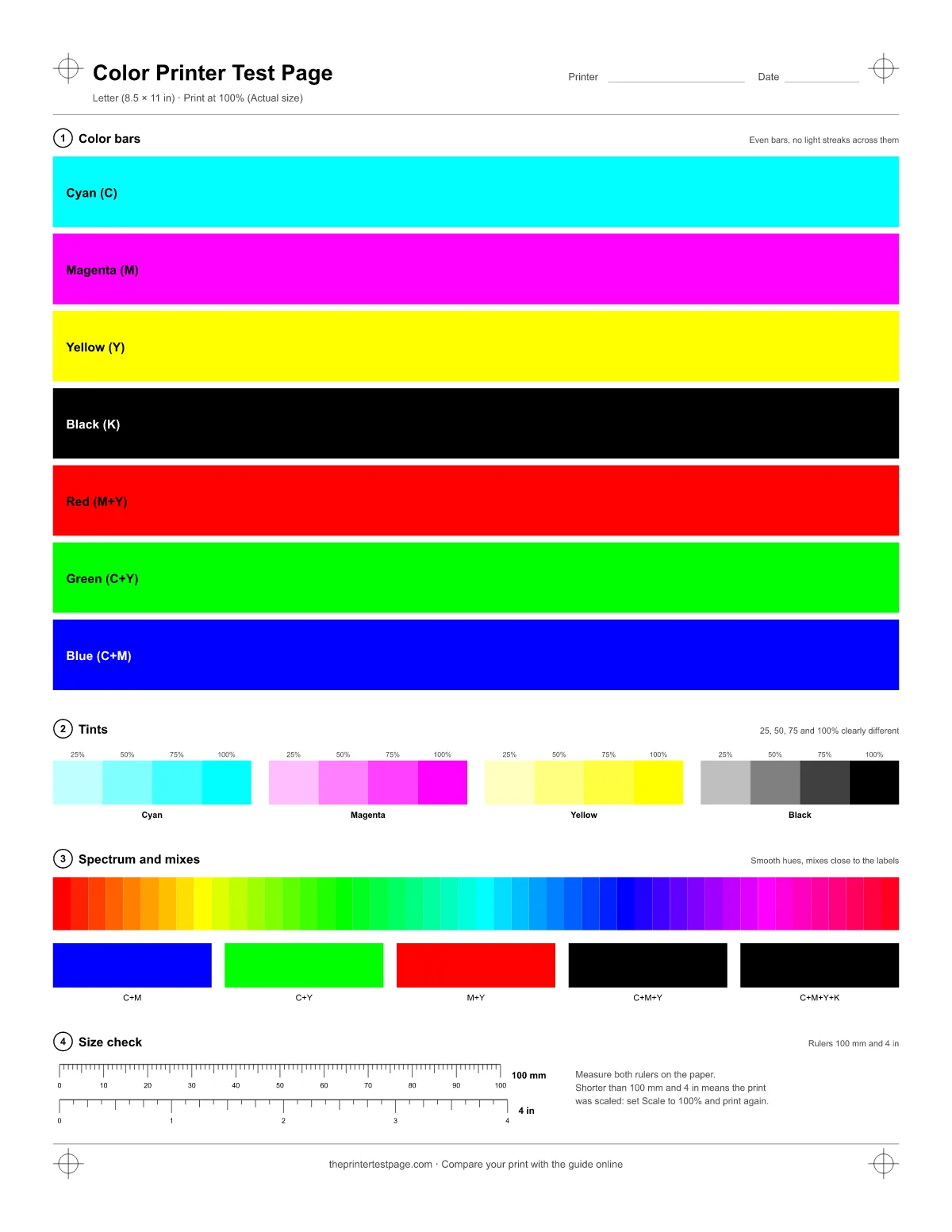
Color printer test page with full-width cyan, magenta, yellow, black, red, green and blue bars, tints and a color spectrum (Letter)
Color test page, Letter size. Zone numbers match the list.

How to print it

  1. Press Print test page at the top, or Ctrl + P (Command + P on a Mac).
  2. Pick your printer and the paper size you loaded: Letter or A4.
  3. Keep the scale at 100%. In Chrome and Edge, Default does that for this page; on a Mac, set Scaling to 100%.
  4. Print, then measure the 100 mm ruler. If it's shorter, the print was scaled.

Set the print dialog to Color, not Black and white, and choose Standard or Best quality. Draft mode uses less ink and makes healthy cartridges look weak.

Step-by-step help for Windows, macOS, Chromebook, iPhone and Android is in the printer test page guide.

Sources: Google Chrome Help: Print from Chrome (opens in a new tab); Microsoft Support: Print in Microsoft Edge (opens in a new tab); Apple Support: Print settings on Mac (opens in a new tab)

Reading color blocks and bars

Look at the printout in daylight or under a white lamp. Warm indoor light makes yellows and blues hard to judge.

Bars (zone 1)

Each bar should be one even color from edge to edge. Thin light lines running along a bar mean some nozzles for that ink are clogged. A streak that runs down the page through every bar is a different problem: on a laser printer it usually comes from the drum or the toner cartridge. Yellow is the hardest to check, so tilt the page toward the light.

Tints (zone 2)

You should see four clear steps per ink. If 25% is barely visible, that ink is weak. If 75% and 100% merge, the printer is putting down more ink than the paper can show, which often happens when the paper type setting is wrong.

Spectrum and mixes (zone 3)

The spectrum should move smoothly from red through yellow, green, cyan, blue and magenta back to red. The C+M+Y patch is never a pure black: brown or dark gray is normal there. The last patch adds black ink and should be the darkest on the page.

Colors look wrong – what it means

Two-ink colors give away which ink is the problem, because each one depends on exactly two cartridges.

  • A bar is missing or pale: that ink is empty, dried out or its channel is clogged. Check the level, reseat the cartridge, run a head cleaning and print again.
  • Red looks orange, blue looks cyan: magenta is weak.
  • Green looks yellow, blue looks purple: cyan is weak.
  • Red looks pink, green looks teal: yellow is weak.
  • Everything looks washed out: the printer is in Draft or Economy mode, the paper type setting is wrong, or several inks are low.
  • Colors are all there but differ from your screen: that is normal to a point. Screens show brighter greens and blues than ink can reach on paper.

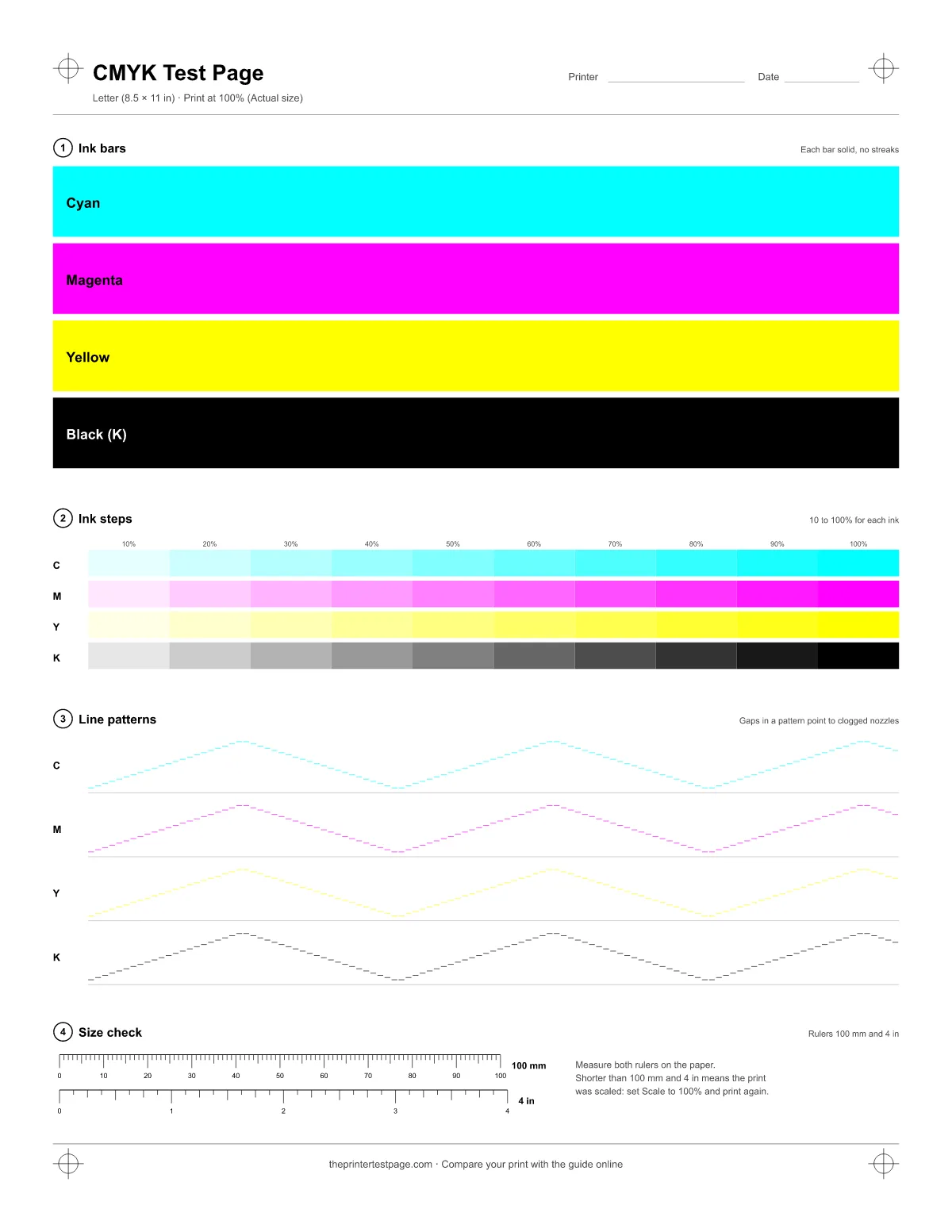
To confirm which ink is at fault, print the CMYK test page. It tests each ink on its own, with a line pattern that shows clogged nozzles.

Saving ink

This sheet covers about 45% of the paper with ink, close to four times as much as the universal test page (about 12%). Print it when you need to judge colors, not as a routine check.

  • For a quick health check, print the universal test page instead.
  • To find a clogged or empty cartridge, the CMYK test page uses less ink and points to one ink at a time.
  • Don't run head cleaning over and over. Each cycle uses ink; two or three in a row is enough before you let the printer rest.
  • Print on plain paper for testing. Photo paper only matters when you test photos.

FAQ

Why does the color test page use so much ink?

It has to: you can only see streaks and weak inks in large areas of solid color. The seven bars alone fill most of the page. If you just want to know whether every ink works, the CMYK test page does that with less ink.

Why does the yellow bar look so faint?

Yellow has little contrast against white paper, so it always looks lighter than the other bars. Check that it is even and bright, with no white lines along it. If the yellow bar is missing entirely, the yellow cartridge is empty or clogged.

Can I print this page on photo paper?

Yes, but set the paper type to the photo paper you use, or the printer will lay down the wrong amount of ink. Use plain paper for routine tests: it costs less and shows streaks just as well.

Why do my printed blues look purple?

Blue is made from cyan and magenta. When it prints purple, cyan is weak or partly clogged. Run a head cleaning and check the cyan bar on the CMYK test page.